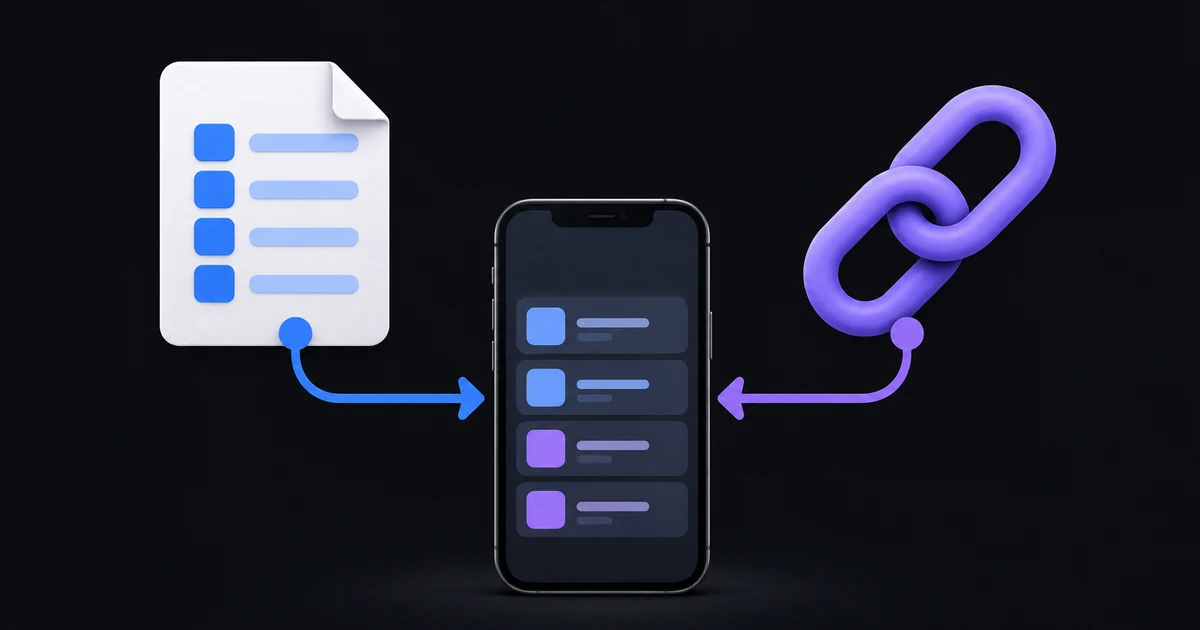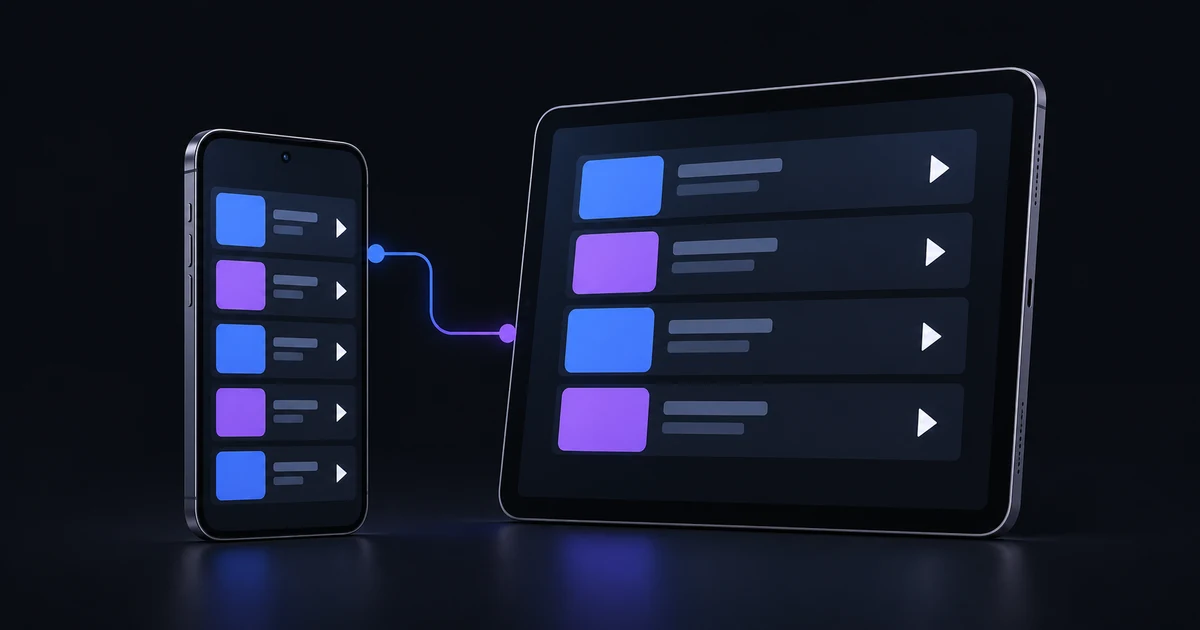
To set up an IPTV player on iPhone or iPad, install the app from its official download route, prepare your provider's playlist details, and select the matching connection method. In IB Player Pro, those methods are M3U URL, Xtream and File.
This guide is for bringing your own authorised playlist into the player. IB Player Pro does not supply channels or a television subscription. If you are unsure which details you need, begin with the IPTV media player overview.
Check the app and your playlist separately
Visit the official download page and choose the current iPhone and iPad option if an available download is listed. Follow its device requirements and official store link. Avoid searching for unofficial installation files when an official route is available.
Prepare one of the following before continuing:
- A complete M3U playlist web address from your provider.
- An Xtream server address, username and password.
- A genuine
.m3uor.m3u8playlist file in Files or iCloud Drive.
Also check that the provider account is active. An expired account can have perfectly correct credentials and still refuse playback. If the provider permits only one simultaneous stream, stop playback on another device while you set up this one.
Open Add your playlist
Open IB Player Pro and follow the account or access options shown in the app. From onboarding, choose Add a playlist or explore demo. If you are already using the app, open Settings → Playlists → Add playlist.
Give the playlist a useful name. A label such as Home playlist is easier to recognise later than a copied server address. The name is for your own organisation; it does not change the source or grant access to extra media.
Choose the connection method that matches the details you were given. Do not put a username into the M3U URL field or use your player account email as an Xtream login.
Option 1: connect an M3U URL
Select M3U URL and paste the complete link into the M3U URL field. Keep its http:// or https:// prefix and any parameters exactly as supplied. Removing the portion after a question mark can remove the information the provider uses to identify your account.
Check for spaces copied before or after the address. If the message includes a trailing full stop, make sure it is punctuation in the message rather than part of the address. Keep the full URL private because it may contain a username, password or token.
Review the content acknowledgement and press Add Playlist. A playlist that loads slowly is not necessarily broken: a large list may take time to download and organise. If it never completes, record the actual error rather than repeatedly adding the same source.
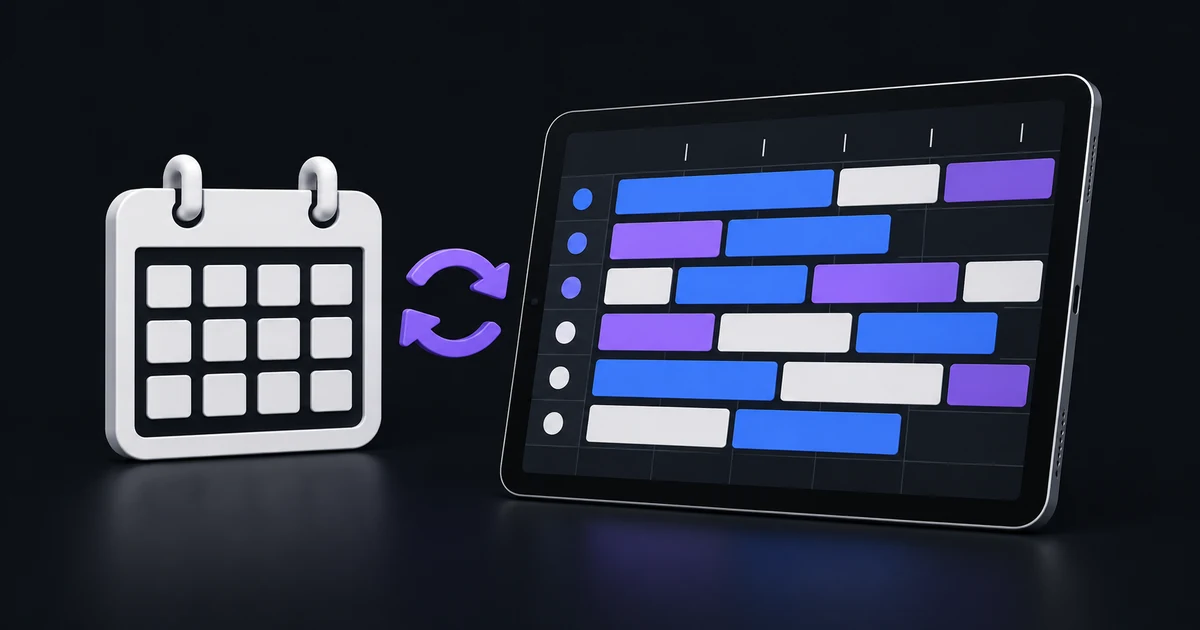
For programme-guide features in the current iPhone app, a compatible Xtream login is the supported route. Do not assume that adding an arbitrary guide URL to a plain M3U source will produce guide data.
Option 2: connect an Xtream login
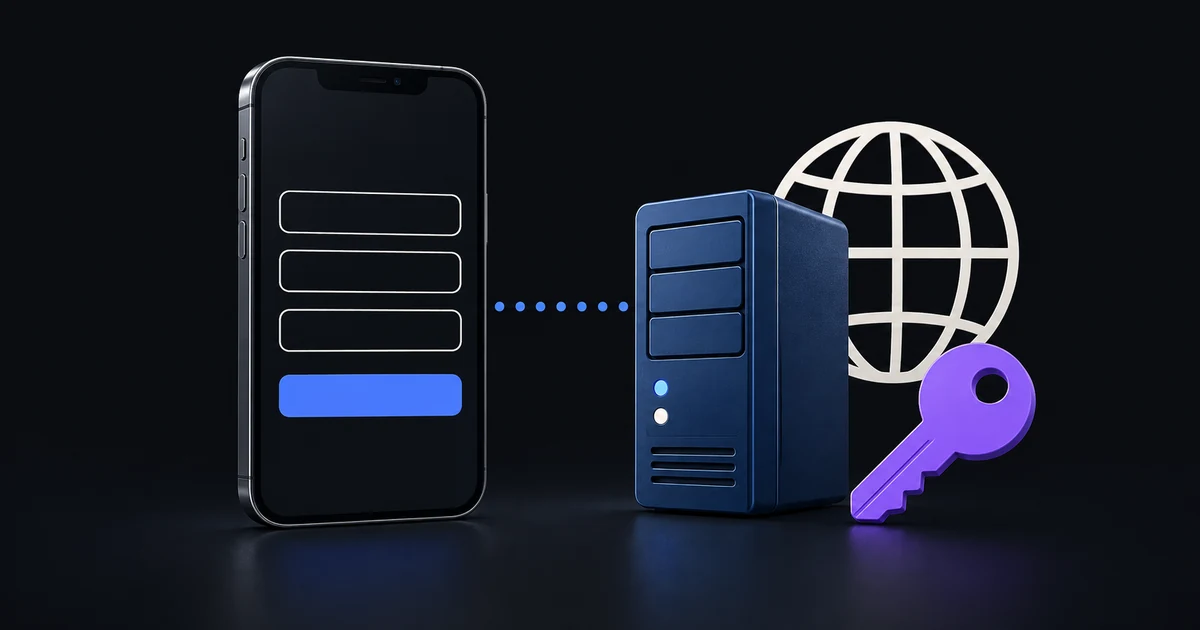
Select Xtream. Enter the provider's server URL, username and password in their separate fields, then press Connect.
The server is the provider address, including its supplied scheme and port when one is specified. It is not the IB Player Pro website address. Keep letter case intact in the username and password, and check characters that are easy to confuse, such as a lower-case l and an upper-case I.
The app checks an Xtream account before saving it. If the provider reports an inactive account or the login is rejected, first verify the exact details with that provider. Our Xtream login troubleshooting guide explains how to distinguish an account problem from a server or network problem.
Option 3: import a playlist file
Select File, choose your playlist from Files or iCloud Drive, and press Import File. The file must actually contain an M3U playlist; changing a document's extension does not convert its contents.
A downloaded web page that asks you to sign in is not a playlist. If the provider sent a download link, make sure you have saved the resulting playlist file rather than the login page. The imported list is a local copy. It does not become a continuously updating remote catalogue simply because the file ends in .m3u8.
Check your first stream before customising
Once the library opens, select one familiar item and confirm that it starts, has sound and can keep playing. Then try a second item. This establishes a useful baseline before you change buffer, picture or network settings.
If channels are missing, check the active playlist and any hidden country or category filters. If a whole source fails, run Settings → Network & Streaming → Test connection. This checks reachability and account information where available; it is not a measurement of sustained streaming throughput.
After the basic connection works, follow the organisation guide to build a manageable favourites list. For an empty or incorrectly timed schedule, use the EPG troubleshooting guide.
Common setup questions
Can I add a playlist on the website?
Yes. Signed-in users can manage playlists from the account Playlists page. A device may still request the provider password when it needs those credentials locally. Do not assume that a player account sign-in replaces a provider login.
Will reinstalling fix incorrect credentials?
No. Reinstalling the player does not change the provider's server, account status or password. Verify those details first and keep a private copy before removing a working configuration.
What should I send support?
Include the device, app version, connection method and exact error text. Say whether the problem affects one item or the entire source. Use the support page and leave provider passwords or full credential-bearing URLs out of public screenshots.