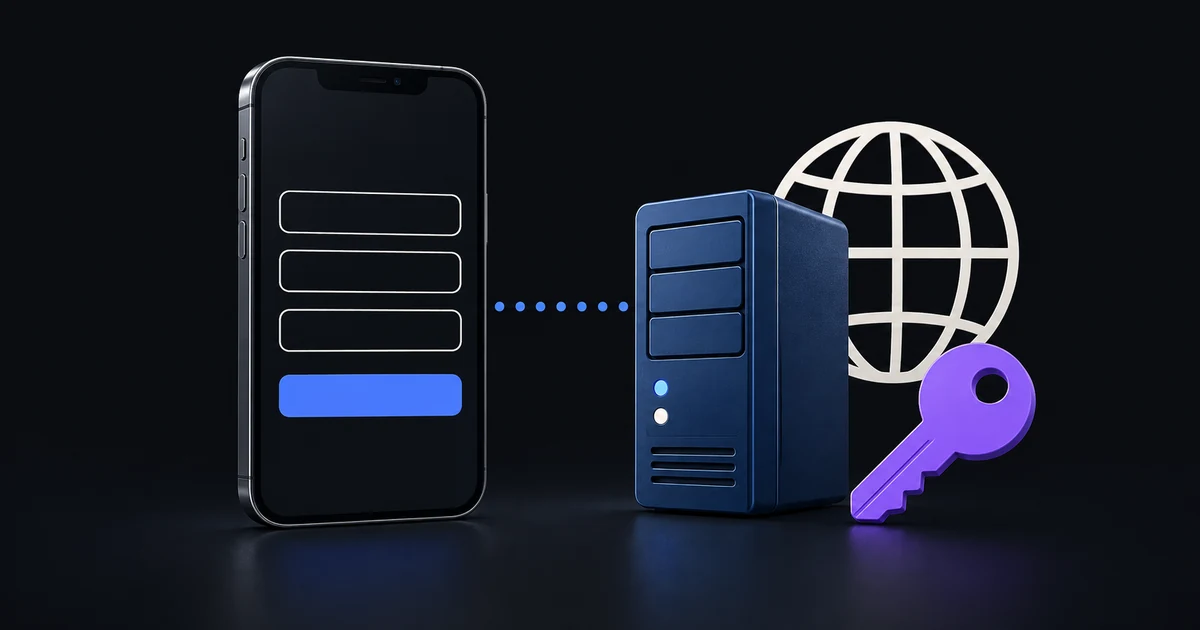
If an Xtream Codes login is not working, check the provider's server address, provider username and password, and provider account status before reinstalling the player. Those three checks resolve different kinds of failures and help you give support a useful report.
An Xtream login is separate from your IB Player Pro account. Your player email and password will not unlock a provider server unless that provider independently assigned those exact details. IB Player Pro plays your own authorised source and does not issue television-provider credentials.
Identify the stage that fails
Start by recording what happens. Does the app reject the account before saving it? Does a category load but its streams fail? Or does one particular channel refuse to start while other items work?
A rejected account points first towards credentials, account status or the server's login response. A loaded library followed by failed playback is a different problem: stream availability, connection limits and format support become more relevant. One broken item is not evidence that every login field is incorrect.
Write down the exact error wording. The message, the stage where it appears, and whether any other item works are more useful than a general report that the app is broken.
Check the server URL, including its port
Use the address supplied by the provider. In the Xtream option, the server is not the IB Player Pro website, a billing portal or a link to a support chat.
Keep the supplied http:// or https:// scheme and a specified port. A port is the number following the hostname after a colon. Do not replace it with a number from a tutorial for a different provider. Likewise, do not switch between HTTP and HTTPS unless the provider confirms the other endpoint is supported.
The app normalises a provider address to its scheme, host and port. That does not correct a misspelled hostname or an address pointing to the wrong server. Ask for the current endpoint if the provider recently moved accounts or changed its domain.
Check credentials character by character
Copy the provider username and password into their separate fields. Look for leading or trailing whitespace in the message, a copied line break, and similar-looking characters. Passwords can be case-sensitive, so preserve the case rather than retyping them from memory.
If the password was changed in the provider's account portal, use the replacement details in the player. Signing out of your IB Player Pro account does not reset the provider password.
A source added on the website may still ask for the provider password on a device. Supply the provider's password at that prompt. The fact that a playlist name appears in your player account does not by itself mean the device has every credential needed for playback.
Confirm the provider account is active
During an Xtream connection, IB Player Pro checks the provider's account response. A provider can report an inactive, expired or otherwise restricted account even when the username and password are spelled correctly.
Ask the provider to confirm the account status and any subscription end date. If you believe you have recently renewed, ask it to check that the renewal was applied to the exact account you are using. A player subscription and a provider subscription are separate: paying for one does not reactivate the other.
Avoid trying large numbers of guessed passwords. If you cannot verify the details, pause the attempts and request the correct information from the source that issued them.
Check simultaneous-stream limits
Providers may allow a limited number of active streams. Close playback on other devices or apps using the same provider account and then test one item on this device.
Account sign-in and active playback are different things. A household can have several devices signed into the player but still be limited by the provider to one active stream. Ask how the provider counts active sessions and whether a recently closed stream takes time to clear.
Do not buy an additional player plan solely to address a provider connection limit. First confirm which service is enforcing the limit and what options that service actually offers.
Use the connection test for evidence
Open Settings → Network & Streaming → Test connection with the intended playlist selected. For a compatible Xtream source, the test requests account information and can show its status and the reported active/maximum connections.
The internet and IB Player Pro service checks help distinguish general connectivity from access to the provider. A successful reachability check is not proof that a particular channel can stream continuously, and it is not a broadband speed test.
If the same source works on one network but not another, report that difference. Check ordinary connectivity, captive-portal sign-in or provider network restrictions before changing unrelated settings. Do not disable device security or install an unknown configuration profile to make a login work.
When login works but video does not
If you can browse categories, test two different items. A single failed item may need a provider-side correction. If all live channels fail, check connection limits and the Live stream format setting. Start with Auto, then use another supported format only when the symptoms justify a controlled test.
For repeated stalls after playback begins, switch to the buffering troubleshooting guide. If you may have supplied a direct stream instead of a catalogue, read the playlist formats guide.
Common questions
Should I put the full M3U link into the Xtream server field?
Use the M3U URL option for a full playlist link. Use Xtream when you have a provider server and separate credentials. Ask the provider to identify the correct method if the message is unclear.
Can support recover my provider password?
The provider that issued the credentials is the right contact for recovering or confirming them. Your player account password is a different credential.
What information helps resolve a failure?
Send the device and app version, connection method, exact error and whether another network or another item works. Use IB Player Pro support for player problems and the provider for its account or server status. Do not publish passwords or full credential-bearing playlist URLs.