An IPTV channel can play correctly while its programme guide stays empty. The video and the schedule are separate pieces of information. To fix an EPG problem, first decide whether the guide is missing, failing to load, or showing the wrong time. Each symptom needs a different check.
EPG means electronic programme guide. In IB Player Pro, the current iPhone and iPad player reads guide information through an Xtream connection. It does not create schedules or supply programme information itself.
1. Check whether your playlist can supply a guide
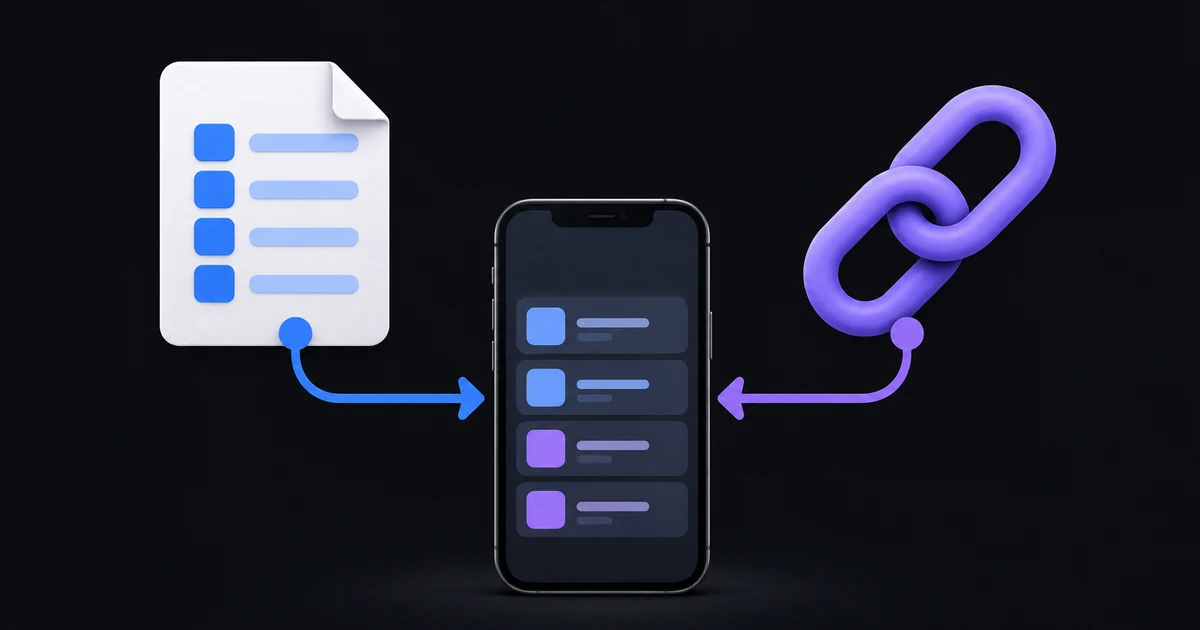
A plain M3U file or URL can contain working video addresses without providing a guide that this player can load. The current implementation does not import a separate XMLTV or external EPG URL for a plain M3U playlist. Adding one to the playlist text will not enable that feature.
Some M3U URLs also contain Xtream login details. IB Player Pro can recognise those details and use the provider's Xtream service, when that service is available. The important question is therefore whether the app has an active Xtream connection, rather than simply whether the address ends in a familiar extension.
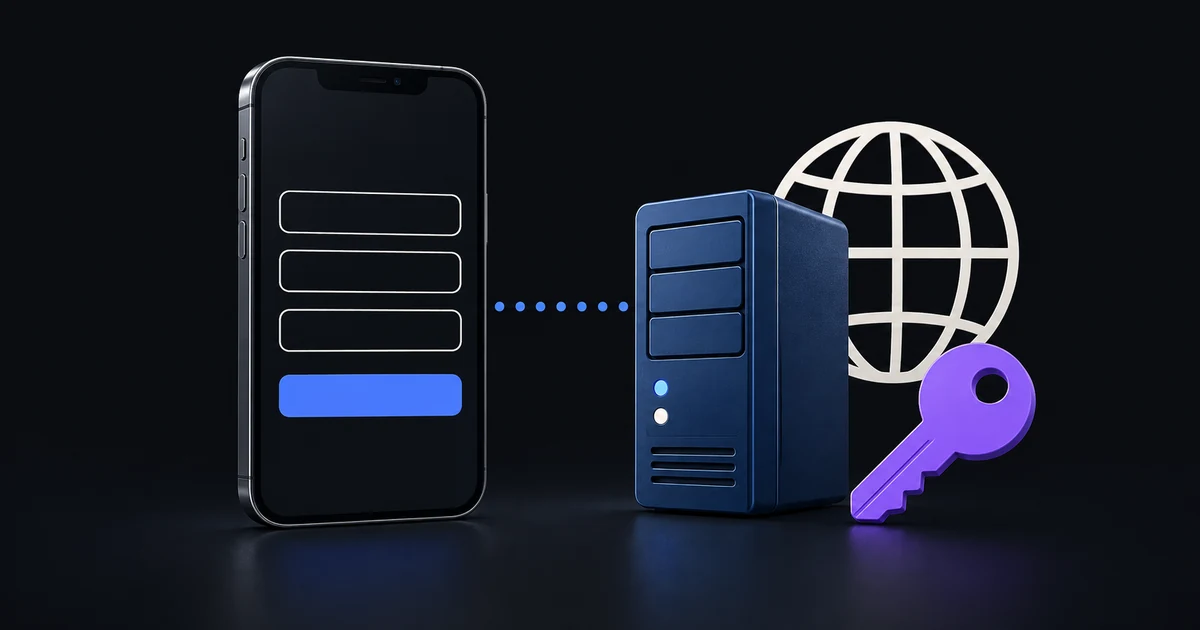
If your provider offers a server address, username and password, use those details to add an Xtream playlist. See M3U URLs, files and Xtream connections before changing your setup. Keep the original playlist until you have confirmed the replacement works.
2. Compare several channels
Open a live channel and tap Guide in the player. Try two or three other channels from the same playlist.
- One empty channel: the provider may have no schedule for that channel, or its channel mapping may need correction.
- Schedules on some channels: the guide connection is working; investigate the missing channels with the provider.
- Every guide empty: check playlist support, provider guide availability and the connection.
- A loading error: retry once and check whether the playlist itself still opens normally.
The message Your provider has no TV guide for this channel means the app received no programme entries for that channel. It does not mean the channel must be unavailable to watch.
3. Refresh cached guide information
Go to Settings → TV Guide & Catch-up → Refresh TV guide now. This clears the saved guide information in memory so the app can fetch it again. Close the guide and open it again to request fresh data.
A refresh can help when the provider has corrected a schedule. It cannot fill an empty schedule at the source. If nothing changes after one refresh and other channels work, repeated refreshing is unlikely to solve a channel-specific data problem.
If your playlist cannot sign in or load at all, follow the Xtream login troubleshooting guide first. A functioning provider connection is needed before its guide can be retrieved.
4. Correct a consistent time difference
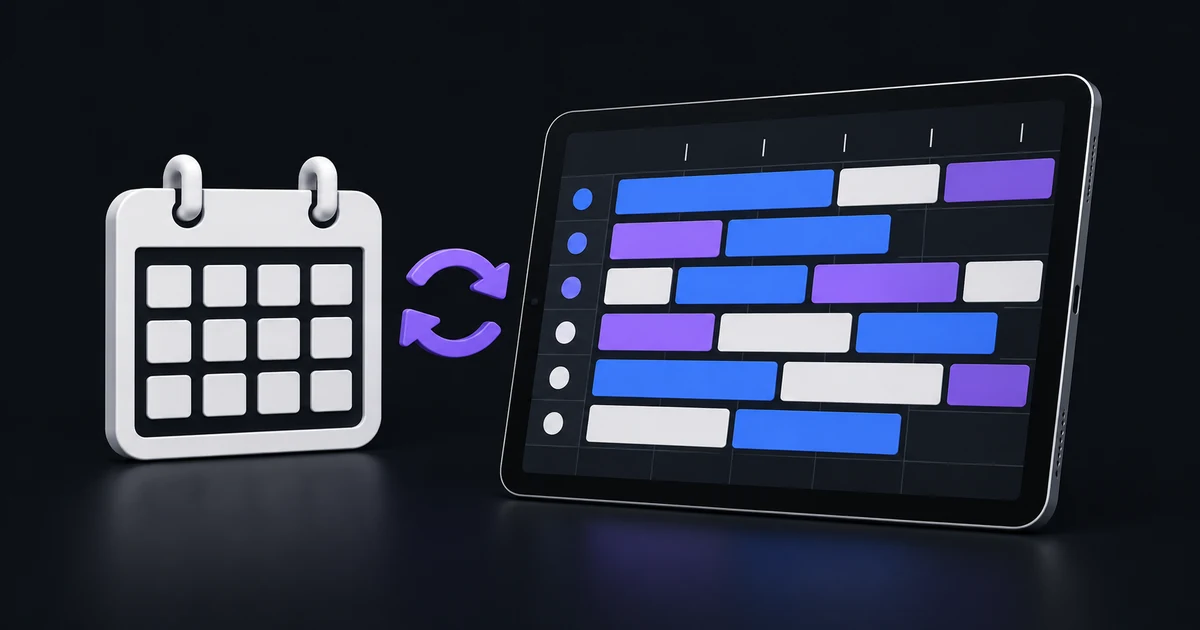
If programme names look right but everything is consistently one or two hours early or late, open Settings → TV Guide & Catch-up → Time offset. The app offers offsets from −3 h to +3 h; 0 h uses the unshifted provider times.
Compare a programme with a start time you can verify, adjust by one hour, then reopen the guide. Record the original value so you can restore it if the change is wrong.
An offset shifts the schedule. It does not repair missing entries, incorrect titles or an isolated channel with bad timestamps. If only one channel is out of step, changing the global offset can make the other channels inaccurate. Ask the provider to check that channel instead.
5. Separate EPG problems from replay problems
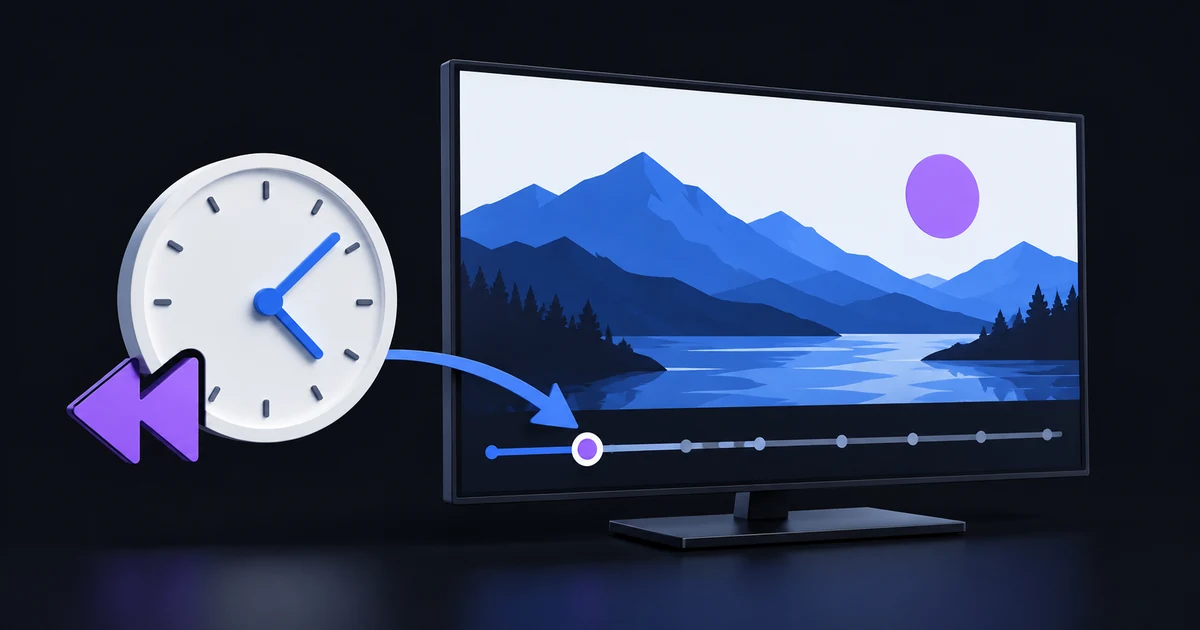
A programme appearing in the guide does not guarantee it is available to replay. Catch-up depends on recordings offered by the provider and the channel's archive window. If the schedule is correct but an earlier programme will not play, use the catch-up troubleshooting guide.
Common questions
Can I watch without an EPG?
Yes, if the channel's video stream works. Guide data is separate from live playback, although a missing schedule limits programme-based navigation.
Will changing the time offset restore an empty guide?
No. It only adjusts the times of entries already supplied by the provider.
Should I reinstall the app first?
Start with the playlist, channel comparison and guide refresh checks. Reinstalling does not create missing provider data and can affect information saved on your device.
What to send when asking for help
For missing schedules, contact your playlist provider with the channel name, date, expected programme and your time zone. For a reproducible app error, contact IB Player Pro support with the device model, app version, playlist type and exact message. Remove passwords and private stream URLs from screenshots. This gives the right team enough information to investigate without exposing your account.