An IPTV media player is an application that opens and plays television or video streams delivered over an IP network. It is the viewing tool: it reads the playlist or login you supply, organises the available items, and plays the streams those items point to.
IB Player Pro is a media player, not a television subscription. It does not sell or include playlists, channels, movies or series. You bring your own authorised content source. Understanding that distinction makes choosing a player, setting it up and troubleshooting it much easier.
The player and the provider have different jobs
Think of the player as the interface between your screen and the source of your media. The provider supplies the stream addresses and determines what is available to your account. The app presents those items in a library and gives you playback controls.
A player can organise a long channel list, remember favourites and show a programme guide when compatible data is supplied. It cannot create a channel your provider does not offer, extend a provider subscription that has expired, or supply subtitles missing from a video.
There can also be two separate accounts. Your IB Player Pro account manages access to the player and its account services. Your playlist-provider account controls the media source. Buying a player plan does not renew a provider account, and renewing a provider account does not change your player plan.
Three common ways to connect a playlist
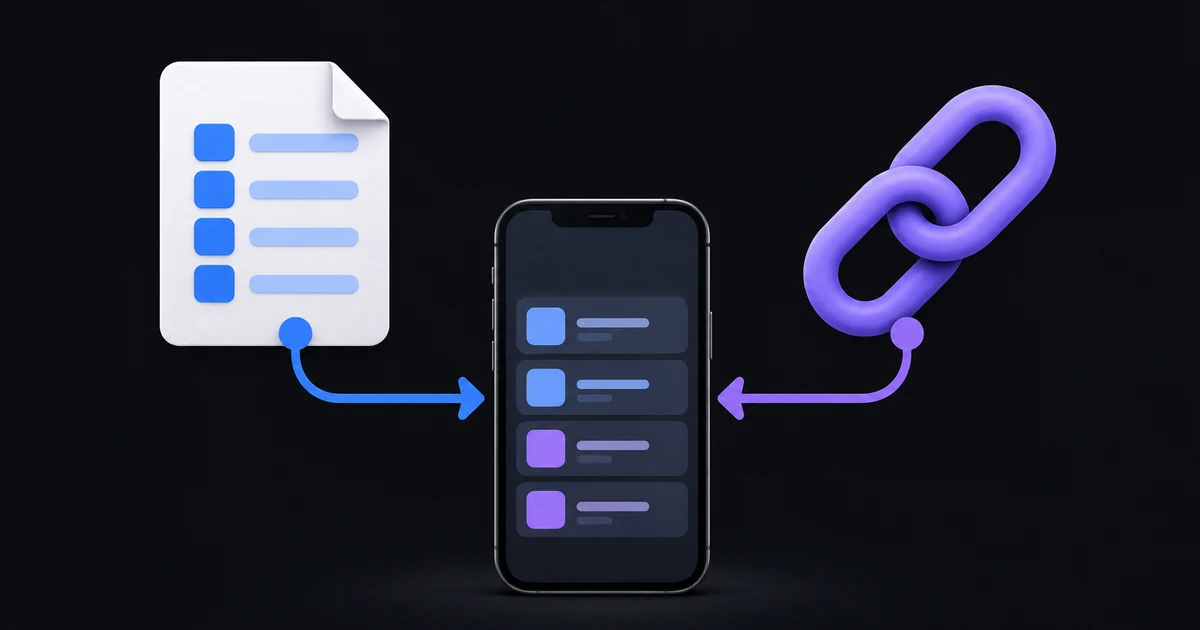
The details your provider gives you determine the connection method. IB Player Pro offers three choices on its Add your playlist screen:
- M3U URL: a web address that returns a playlist. Paste the complete address, including any provider-supplied parameters.
- Xtream: a server address, username and password. These are the provider's details, not your IB Player Pro email and password.
- File: an
.m3uor.m3u8playlist stored in Files or iCloud Drive. Import the actual playlist file rather than a web page or a screenshot of a link.
An M3U URL and a local file may describe similar channel lists, but they behave differently when the provider changes that list. The playlist formats guide explains how to choose without confusing a channel catalogue with a single video stream.
What you need before opening the app
Start with a device running a compatible version of the app, a working internet connection, and a playlist or login from a source you are authorised to use. If you have not downloaded the app, check the official download page for the current availability and requirements for your device. A platform labelled coming soon is not an available download.
Keep the original provider message somewhere private. You may need its exact server address, port, username or password when checking a connection. A playlist URL can contain account credentials, so treat the full URL like a password. Do not post it in a public forum or include it in an unredacted screenshot.
If the provider limits simultaneous streams, close playback on other devices before testing. The number of devices signed into your player account and the number of streams your provider permits are different limits.
How the library is organised
Once the source is added, IB Player Pro presents the available Live TV, Movies and Series content. The quality of the library depends partly on the metadata supplied with the playlist: channel names, categories, artwork, programme data and language tracks cannot be assumed to exist for every source.
Favourites and browsing controls help make a large library manageable. You can use country and category views, search for items, and hide sections you do not want to browse. Start with a small shortlist rather than trying to reorganise the entire catalogue on your first visit. Our channel organisation guide covers a practical approach.
A programme guide and catch-up also depend on the connection method and the provider's data. For the guide in the current iPhone app, use a compatible Xtream connection. A normal M3U channel list alone should not be taken as a promise of guide or replay support.
What affects picture quality and reliability?
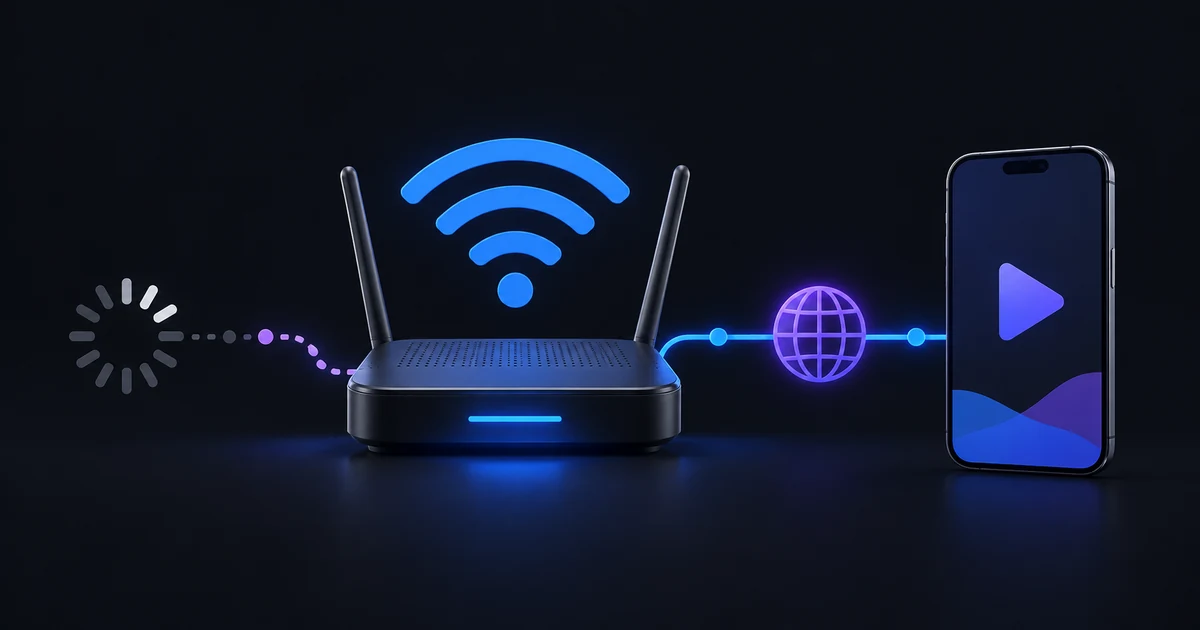
A stream has to travel from its source, through the network, to a device that can decode it. A good player matters, but it is only one part of that chain. Source resolution, encoding, network stability and device capabilities all affect the result.
A channel labelled 4K is not proof that its current video is a genuine 4K stream. Similarly, a high headline broadband speed does not guarantee a stable connection to every provider. Test one familiar channel first, then a second channel, before judging the whole setup.
If playback stops regularly, follow the buffering troubleshooting guide. Its first task is to separate a problem affecting one stream from a problem affecting the network or account. Changing several settings at once usually makes that distinction harder.
Questions before you start
Does an IPTV player come with channels?
IB Player Pro does not. The player uses the playlist or login you add. Check what your chosen source provides separately, including any account or connection limits.
Can I use my IB Player Pro password as an Xtream password?
No. Xtream credentials belong to the playlist provider. Your player account email and password belong to IB Player Pro.
Will every playlist have a TV guide, subtitles and catch-up?
No. Those features need compatible provider data or tracks. A successful playlist import confirms that a source can be read; it does not guarantee every feature for every item.
Your first useful step
Check the current download options, gather the correct playlist details, and follow the iPhone and iPad setup guide. Begin with a single working source and a single stream. Once that baseline works, add favourites and explore the features your provider supports.