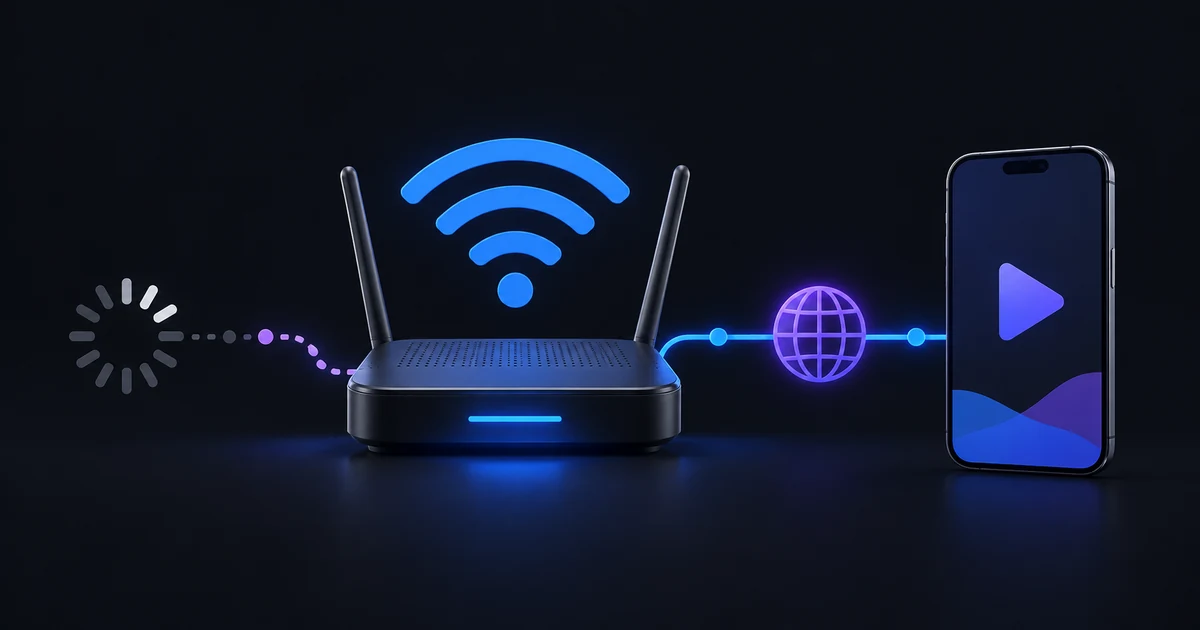
IPTV buffering happens when playback cannot maintain a steady supply of usable video. The cause may be a weak local connection, an overloaded or unavailable source, a provider connection limit, or a problem with the stream format or device. There is no single setting that fixes every case.
The most useful approach is to change one thing at a time. First decide whether the problem affects one item or the whole source. Then compare connections and review the relevant player settings. That gives you evidence instead of a list of changes you cannot interpret.
Step 1: compare two different items
Play a familiar channel, then try another channel from a different category. If the issue concerns movies or series, also compare two different videos.
When only one item fails while others play normally, report that item to the provider. It may have an unavailable source, a damaged feed or an incorrect address. Reinstalling the player is unlikely to repair a provider-side channel.
If every item stalls, continue with account and network checks. Note whether the problem happens only at a certain time, only after several minutes, or immediately on opening a stream. Keep the test conditions similar so the comparison means something.
Step 2: stop other streams on the same account
Close playback on another phone, television or app using the same provider account. Providers can limit the number of simultaneous connections. A login may be accepted while an additional stream is refused or interrupted.
The provider's connection allowance is separate from the devices shown in your IB Player Pro account. Ask the provider about its limit and how it releases an active session. Do not assume that a multi-device player account permits unlimited simultaneous provider streams.
For a compatible Xtream source, Settings → Network & Streaming → Test connection can show the provider's reported account status and connection count. If the account is inactive or the login fails, use the Xtream login troubleshooting guide before investigating picture quality.
Step 3: compare the network fairly
Try moving the device closer to the router and pause large downloads or uploads on the same connection. If practical and permitted by your provider, test the same item briefly on another ordinary connection. Watch your mobile data allowance if you use cellular service for that test.
A better result close to the router suggests a local wireless problem. A better result on another network suggests that the original path to the provider needs attention. Identical failures on different networks make the individual source or account more relevant, although no one test proves the cause on its own.
A speed test measures a particular test route at a particular moment. A stream comes from a different endpoint. High download speed therefore does not rule out interruptions, congestion or poor delivery from that source.
The app's Test connection option checks reachability and compatible account information. Treat a successful result as a useful clue, not a guarantee of stable streaming throughput.
Step 4: start with sensible player settings
Open Settings → Player → Buffer. IB Player Pro offers Low latency, Normal and Large. Begin with Normal. A larger buffer can help absorb brief interruptions, but it may increase startup delay and cannot create bandwidth that the connection does not have.
Change the buffer once, reopen the stream and compare it under the same conditions. If the problem does not improve, return to the previous setting before testing something else. Low latency favours quicker starts; it is not automatically the best choice for an unstable source.
Leave Hardware decoding enabled as a starting point on a compatible device. If one particular video produces a decoding problem, test it separately from network stalls. A picture that is consistently choppy while audio continues can call for a different investigation from a player repeatedly waiting for more data.
Step 5: test the live format only when relevant
Under Settings → Network & Streaming → Live stream format, start with Auto. The app can try the alternative TS/HLS format when a compatible live channel fails to start. A provider may support one format more reliably than another.
If needed, test HLS (.m3u8) or MPEG-TS (.ts) with the same channel, then compare. Changing this setting does not manufacture a format the provider does not serve. It also does not turn a lower-resolution stream into 4K.
Keep Auto-reconnect enabled if you want recovery attempts when a live stream drops. Recovery is helpful after a temporary interruption; it does not fix a consistently unavailable endpoint.
Step 6: separate resolution from stability
If the provider offers lower-resolution alternatives, compare an HD version with the higher-resolution version of the same programme. Better performance on the lower-quality version can help identify a source, decoding or delivery constraint. It does not establish a universal internet-speed requirement.
Check the 4K playback guide for the relationship between source resolution, encoding, network reliability and the display. Choosing a stable stream is more useful than chasing a channel label that the source cannot sustain.
Do not clear everything as a first step
Removing all playlists or reinstalling the app can erase a useful working baseline. Keep a private copy of your provider details before making a change that removes configuration.
Cache clearing is relevant when catalogue or artwork data is stale. It is not a general cure for a server that cannot deliver video. Diagnose playback first rather than repeatedly downloading the same catalogue.
Common questions
Will a large buffer fix a slow internet connection?
It can help with short gaps in delivery. It cannot sustain a stream whose required data rate consistently exceeds what the connection or source supplies.
Why is only one channel buffering?
Compare another item under the same conditions. A single-channel fault points towards that particular feed or address and is worth reporting to the provider.
What should I tell support?
Use the support page and include the affected item, time, app version, connection type and the results of the two-stream comparison. Say which setting you changed and what happened. Keep account passwords and private playlist URLs out of public screenshots.