Smooth 4K IPTV playback depends on a usable high-resolution source, enough sustained network capacity and a device that can decode the stream's format. Installing a media player cannot turn a lower-resolution channel into an original 4K broadcast.
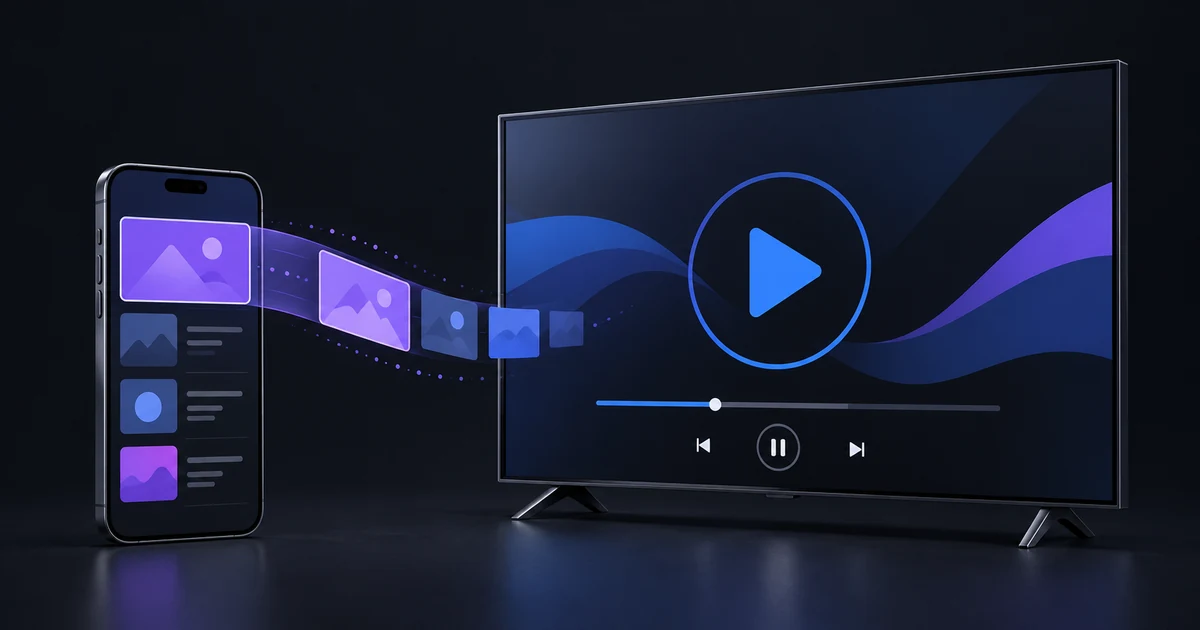
IB Player Pro plays the stream supplied by your playlist. Use the checks below to understand what you are receiving and locate a playback problem before changing several settings at once.
Start with the source, not the channel name
A playlist entry with 4K or UHD in its name is a label supplied by the playlist. It is not a measurement of the video. Ask the provider what resolution, video codec, frame rate and bitrate the stream actually uses if those details are unclear.
Common consumer UHD video has a resolution of 3840 × 2160. Apple includes this resolution in its HLS encoding examples, alongside different bitrate and format choices. Those examples illustrate why resolution alone does not define a stream's network demand.
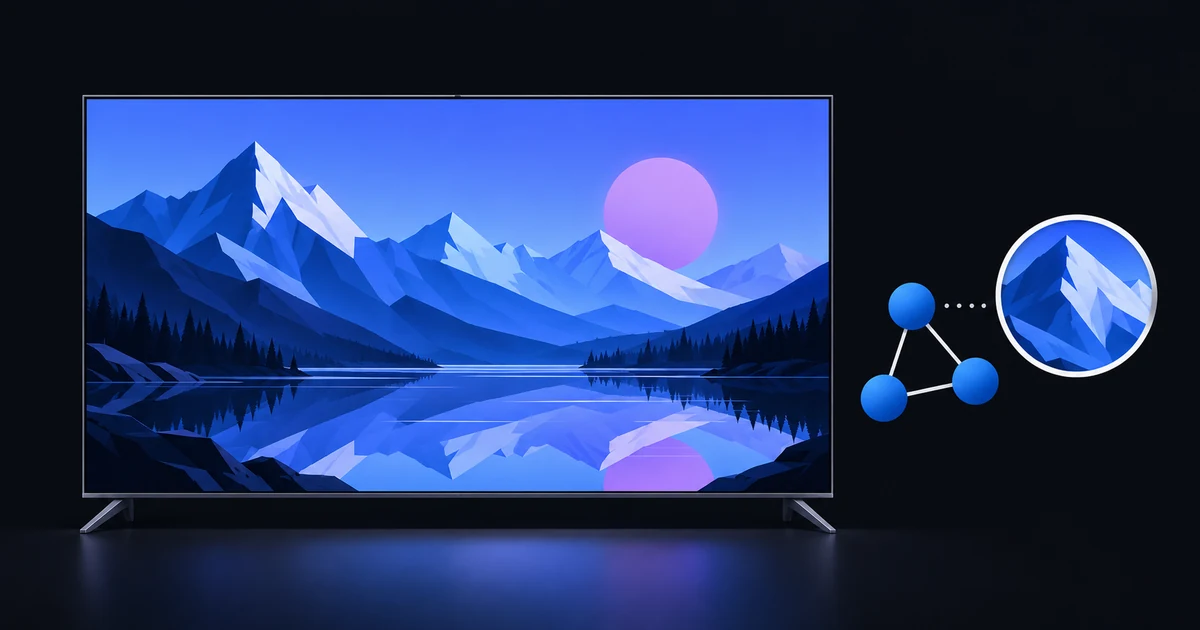
In the current IB Player Pro player, the playback quality badge is based on the decoded video height when the player reports it. It is separate from the channel name. A 4K badge describes the resolution category; it does not certify the original production quality, encoding quality or HDR support.
A low-quality source can remain visibly soft or heavily compressed even when it has high pixel dimensions. The app cannot recover detail that is absent from the supplied stream. See the IPTV media player guide for the boundary between the player and the content source.
Check device compatibility as well as resolution
A device needs to handle the stream's codec and encoding settings, not just a video labelled 4K. Resolution and frame rate can affect compatibility. Apple specifically notes limitations for some older devices in its HEVC support guidance.
Check the official specifications for your exact device and ask the provider about the affected stream's format. If an HD version works while a particular 4K version does not, that is useful evidence, but it does not prove that bandwidth is the only issue. The two versions may also use different codecs or encoding settings.
This guide describes the current iPhone and iPad implementation. Check the download page for the installation options and availability shown for your device rather than assuming that every platform has an identical release or feature set.
Use a steady connection with room for peaks
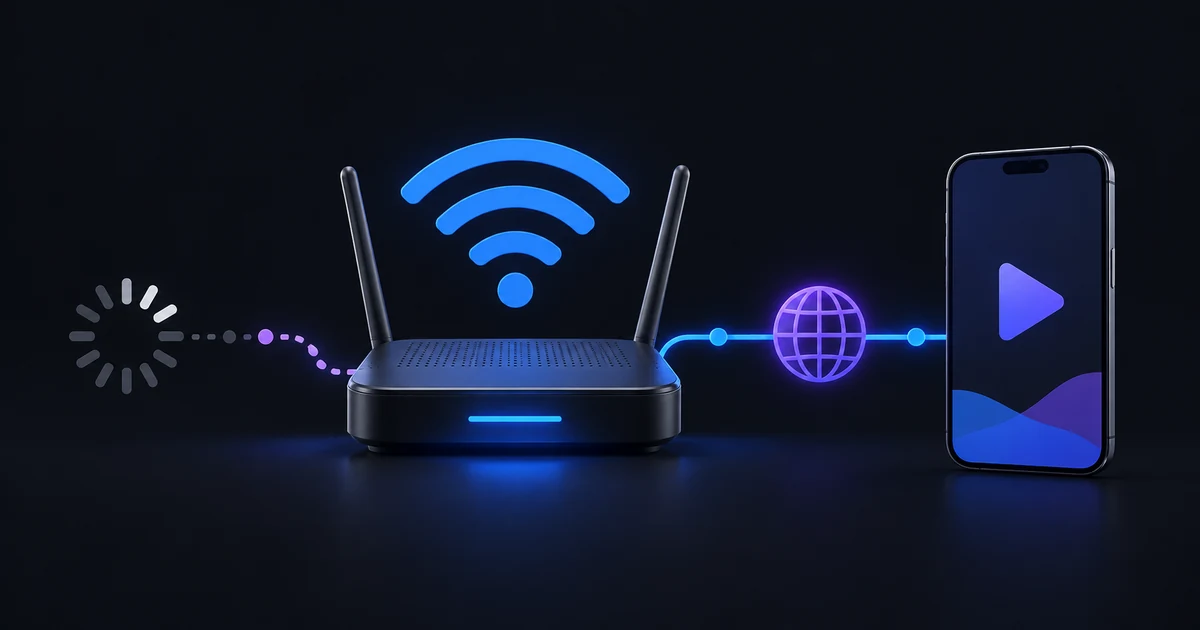
There is no single internet speed that guarantees every 4K IPTV stream will work. Bitrate varies with the provider's encoding, and the same connection is often shared with other devices. A speed test to a nearby test server does not directly measure delivery from your playlist provider.
For a useful comparison, stay near the router, pause large downloads on the same network and test the same stream again. Then compare another high-resolution stream and, if available, a lower-resolution version of the affected channel. Keep the device and app settings unchanged during these checks.
Ask the provider for the stream's expected bandwidth rather than relying only on its name. Allow capacity for other household traffic and bitrate peaks. If performance is poor only at certain times, record the time and whether other channels are affected; that pattern helps distinguish local congestion from a source-specific problem.
Check the player settings one at a time
Open Settings → Player. Hardware decoding is on by default and enables hardware acceleration in the player. Leave it enabled for your first test. If a specific stream has a reproducible decoding problem, compare playback with it disabled, then restore the original setting if there is no improvement.
Buffer offers Low latency, Normal and Large. Begin with Normal. A larger buffer may help absorb short delivery interruptions, although starting playback can take longer. It cannot fix a stream whose delivery remains slower than the amount of data needed to play it.
Close and reopen playback after making a change so the next comparison uses the new player configuration. Write down which change helped. Altering decoding, buffering and network settings together makes the result difficult to interpret.
Aspect ratio controls picture fit. Fit preserves the whole picture, while other options can crop or stretch it. These controls do not change the incoming stream resolution.
Use the symptom to choose the next step
- Playback starts, then pauses repeatedly: follow the buffering troubleshooting guide and compare networks and channels.
- One stream fails while comparable streams work: ask the provider to check that source and its encoding.
- Video works but audio fails: try the available tracks and use the audio and subtitle guide.
- Picture looks soft despite a high-resolution badge: check source quality with the provider rather than searching for an app sharpness switch.
Common questions
Does 4K mean HDR?
No. Resolution and dynamic range are separate properties. Neither the channel label nor the player's resolution badge confirms end-to-end HDR playback.
Can a larger buffer make every 4K stream smooth?
No. It may help brief interruptions, but source faults, persistent bandwidth limits and decoding incompatibilities need their own fixes.
Does a 4K stream guarantee a 4K picture on every screen?
No. The stream resolution, the device's display and any output path are separate parts of the viewing setup.
If the checks point to an app playback issue, contact support with your device model, app version, exact symptom and comparison results. Ask the provider for stream details without sending private login credentials in a public screenshot.