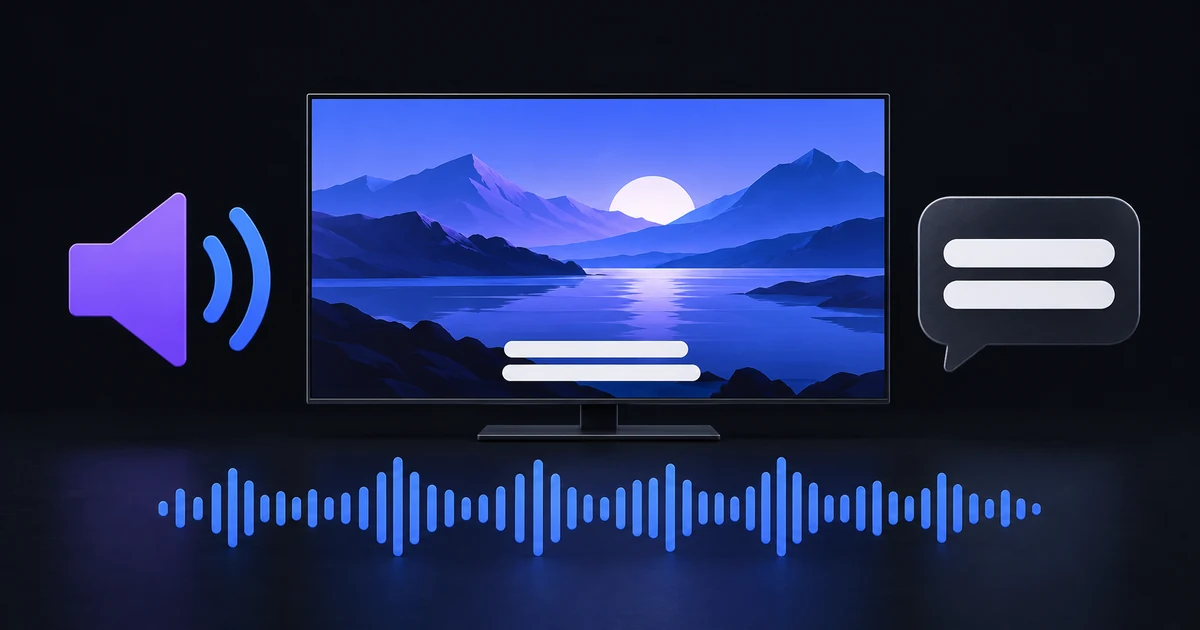
Choosing a language in the player works only when the stream includes a track in that language. IB Player Pro can select the audio and subtitle tracks it receives, but it does not translate dialogue or generate subtitles that the provider has not supplied.
This guide covers the Audio & Subs menu for movies and episodes in the current iPhone and iPad player, plus the app's saved audio and subtitle preferences. Start playback before checking tracks so the player has time to discover what is available.
Choose an audio or subtitle track during playback
Open a movie or episode and wait until playback starts. Show the controls, then tap Audio & Subs. The menu lists the available audio and subtitle tracks, using language and title information from the stream when present. Tracks without clear metadata may have a numbered label.
Select the audio you want. If subtitle tracks are available, choose one or select Subtitles off. Change one track at a time and listen or watch for a few seconds before making another change.
If you open the controls too early, the player can display Tracks are available once playback starts. This is a timing issue, rather than confirmation that the file has no tracks. Wait for the video to start and try again.
The live player uses its corresponding action for Favorite rather than exposing this movie and episode track menu. Do not expect every control described here to appear on a live channel.
Set preferred languages for future playback
Go to Settings → Audio & Subtitles. Under Audio, choose Preferred language. Original is the default. The player can select a matching preferred track when the stream provides recognisable language information.
Under Subtitles, turn on Show subtitles and select Language. Subtitles are off by default. Enabling them expresses a preference; it does not ensure every title contains a suitable track.
Language metadata matters. A track can exist but be labelled poorly, so automatic selection may not choose it as expected. Check the playback menu and choose it manually when it is listed. If the language is absent, ask your provider whether another version includes it.
If you are still setting up your library, follow the iPhone and iPad playlist guide before troubleshooting individual titles.
Make subtitles easier to read
The Subtitle style section includes Text size, Text colour, Background and Height from bottom. Use the preview to adjust readability, then check a real scene with both a bright and dark background.
A practical starting point is white text with Shadow or a dark background. Increase text size if you struggle to read at your normal viewing distance. Raise the position if captions overlap something important near the bottom of the picture.
The choices include white, yellow, cyan and green text, with None, Shadow, Semi-transparent or Black box backgrounds. Use the combination that gives you sufficient contrast while keeping the picture comfortable to watch.
Text that is already part of the video image cannot be switched off or restyled as a separate subtitle track. If a subtitle remains visible after you select Subtitles off, it may be embedded in the picture itself.
Correct a consistent audio timing mismatch
Under Audio, Audio delay allows an adjustment between −500 ms and +500 ms. Use this for a stable mismatch between dialogue and mouth movements.
Return the value to 0 ms first, watch a clear speaking scene, then make a small adjustment and compare. Move in the other direction if the mismatch becomes worse. Record the value you tried, and restore zero before checking a different title so a global adjustment does not confuse the comparison.
A delay adjustment is not the right solution when playback repeatedly stalls and the sync changes after each interruption. First address the connection or stream problem using the buffering troubleshooting guide. The app exposes an audio delay control, rather than a separate subtitle timing slider.
If sound is quiet or missing
Check the device volume and where sound is being sent, especially if headphones or another audio output are connected. Test a second title, then try another audio track in the affected title if one is available.
Volume boost is intended for quiet audio. Begin with a small increase and listen for distortion. It cannot restore an absent audio track or repair a track the player cannot decode. If a specific format fails while others work, include that pattern when asking for help; playback compatibility involves more than the picture resolution.
Common questions
Why is my preferred language missing?
The provider may not supply it for that title, or the track metadata may not identify it correctly. A saved preference cannot add a new language track.
Can the app download external subtitles in this menu?
The current menu selects tracks supplied with the stream. It does not offer an external subtitle search or an upload control.
Why can I not change visible captions?
Captions built into the video picture are not a separate selectable track. Ask the provider whether a version with switchable subtitles is available.
For missing languages or broken tracks in one title, contact your provider. For a reproducible player-control problem, contact IB Player Pro support with the title, device, app version and steps, without private stream URLs or passwords.